How to Password Protect a
USB Drive
Whether you are carrying sensitive client files, financial records, or personal documents, an unprotected flash drive is a major security risk. Explore the most effective ways to encrypt and secure your portable data.
Quick Answer
To password protect a USB drive, Windows Pro users can right-click the drive and select "Turn on BitLocker". Mac users can erase the drive via Disk Utility using an encrypted format. For users who need to open their secured drive on any computer without administrator rights, portable software like USB Secure is the most reliable method.
In This Guide
The Importance of USB Drive Password Protection
USB flash drives are incredibly convenient, but their small size makes them exceptionally easy to lose or steal. According to endpoint security research, millions of portable drives are lost annually in airports, transit systems, and coffee shops.
If an unencrypted drive falls into the wrong hands, whoever plugs it in gains immediate access to your files. Password protecting your USB drive ensures that even if the physical hardware is lost, your data remains completely inaccessible.
In this guide, we evaluate built-in operating system tools, hardware alternatives, and specialized third-party software to help you find the right balance between security, convenience, and portability.
How to Lock a USB Flash Drive: Available Methods
Method 1: Windows BitLocker To Go
BitLocker is Microsoft's built-in full-disk encryption tool. "BitLocker To Go" specifically targets removable storage devices.
Free, uses strong AES encryption, deeply integrated into Windows.
Requires Windows Pro/Enterprise to encrypt, zero compatibility with macOS.
Method 2: Mac Disk Utility
macOS offers robust native encryption for external drives using its built-in Disk Utility tool.
Free, incredibly fast, seamless experience on Apple devices.
Formats the drive (erases data), completely incompatible with Windows.
Method 3: Portable USB Software
Portable encryption software lives on the USB drive itself. This allows you to lock and unlock files on any computer without needing administrator rights.
PC independent, no admin rights required, supports "plug and play".
High-quality options usually require a one-time software purchase.
Methods Comparison
| Method | Difficulty | Admin Rights? | Best For |
|---|---|---|---|
| BitLocker To Go | Medium | Yes | Windows Pro ecosystems |
| Mac Disk Utility | Easy | Yes | Mac-only ecosystems |
| Portable Software | Easy | No | Cross-PC travel, public computers |
| Editorial Verdict: Use built-in OS tools if you never switch platforms. For users moving between home, school, and work PCs without admin privileges, portable software is the clear winner. | |||
Best Tools for USB Drive Password Protection
We tested several utilities focusing on portable security. Here is our assessment of the top options available.

USB Secure
by NewSoftwares.net | Windows OS
Why we recommend it: USB Secure solves the biggest problem with portable storage encryption: administrator rights. Because it doesn't install kernel drivers, it runs completely independently. You can plug your drive into a library PC or a work laptop and access your files without triggering admin prompts.
- PC Independent: Executable travels on the drive itself.
- No Admin Rights: Opens seamlessly on restricted guest accounts.
- Virtual Drive Access: View/edit files without physical extraction.
Alternative: VeraCrypt
A powerful open-source tool. Highly secure but requires administrative privileges to mount the encrypted volume on new computers. Best for advanced users.
Alternative: SanDisk SecureAccess
OEM software included with SanDisk drives. Functional and free, but only works on SanDisk brand hardware and relies on older AES standards in its free tier.
A Closer Look: Interface Gallery
See exactly how USB Secure operates day-to-day. The interface is designed to be straightforward and accessible.
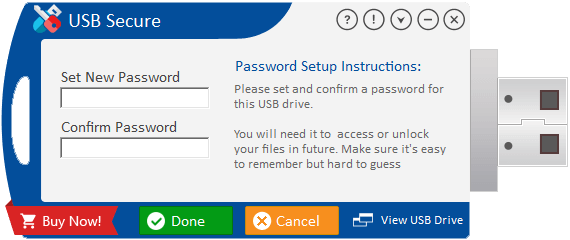
Initial Password Setup
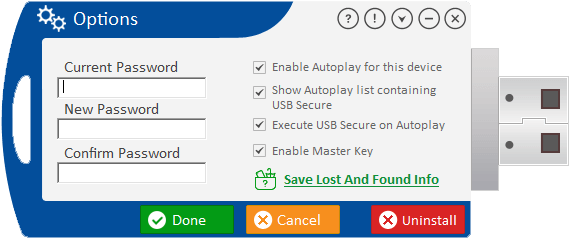
Security Options & Settings
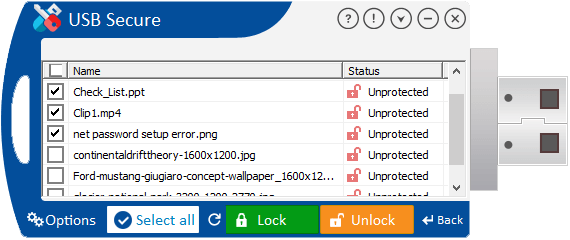
Protected Data View
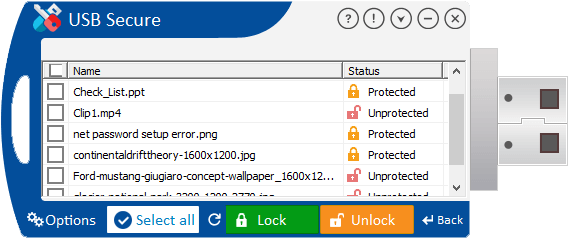
File Management
How to lock files on USB
If you choose our recommended software, setup takes under two minutes. Follow these steps:
Run the Setup
Download the installer and launch it. The wizard will automatically detect any external USB drives plugged into your machine.

Select Your Drive
Choose your target thumb drive, pen drive, or memory card from the list. The software installs a lightweight executable directly onto the portable drive.

Set Master Password
Once installed, you will be prompted to set a strong password. This password will apply robust AES security to the media.

Access Anywhere
Plug the drive into any new PC. You can use the "Open Data in Virtual Drive" feature to modify files without fully extracting them.
USB Secure Pricing: What You Get
Unlike modern security tools that require recurring subscriptions, USB Secure is licensed via a one-time payment. Choose the option that fits your needs.
Free Trial
Test the core encryption features on your flash drives before you commit.
- Core encryption capability
- Trial reminders and prompts
- Usage limitations apply
For Windows 11, 10, 8, 7
USB Secure Pro
- One-time payment (no subs)
- Full functionality & virtual drive
- No trial reminders or limits
- Free technical support
Secure checkout via official store
Editorial Verdict
Securing your portable data is no longer optional. While Windows and macOS provide capable built-in utilities, their lack of cross-platform compatibility and requirement for administrative rights make them frustrating for active users.
For a straightforward, portable encryption tool, USB Secure is the best option we found. Its ability to run directly from the drive means your data remains accessible to you—and only you—regardless of whose computer you plug it into.